


Defining What Can Park and How Many Vehicles You Can Handle
Every parking facility is designed with specific vehicle types and limits in mind.
A bike park behaves very differently from a commercial car park or a mixed-use facility.
In SISTEM, Vehicle Types and Capacity work together to ensure accurate availability, pricing, and smooth daily operations.
What are vehicle types in SISTEM?
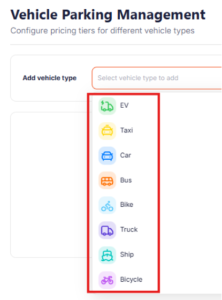
Vehicle types define what kind of vehicles are allowed to enter a parking facility.
Common examples include:
- Two-wheelers
- Cars
- SUVs
- Electric vehicles (EVs)
- Commercial vehicles
- Buses or trucks (for large facilities)
Each vehicle type can be treated as a separate category within the same parking.
Why vehicle types matter
Vehicle types are not just labels. They directly affect:
- Capacity management — how many vehicles can be accommodated
- Pricing rules — different rates per vehicle type
- Availability status — preventing overbooking
- Reporting and analytics — usage trends by vehicle category
This allows parking operators to manage space efficiently and maximize revenue.
Understanding parking capacity
Capacity defines how many vehicles a parking facility can hold at one time.
In SISTEM, capacity is:
- Set at the parking level
- Configured per vehicle type
- Enforced in real time
This ensures the system always knows whether parking is:
- Available
- Almost full
- Completely occupied
Vehicle-type based capacity
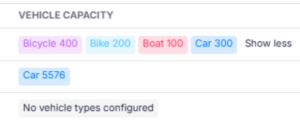
Different vehicle types often require different space allocations.
For example:
- 50 car slots
- 30 two-wheeler slots
- 10 EV charging slots
SISTEM allows you to:
- Define capacity separately for each vehicle type
- Track occupancy independently
- Prevent one category from consuming another’s space
This is especially useful for mixed-use or urban parking facilities.
How capacity affects daily operations
Capacity settings control:
- Whether new entries are allowed
- When a parking is marked as full
- Operator permissions during peak hours
Once capacity is reached:
- New vehicle entries are blocked
- Operators are alerted
- Availability is reflected across dashboards
This prevents manual errors and overcrowding.
Steps to add vehicle types and capacity
Once a parking space is created, vehicle types and capacity are configured from Parking Settings.
This setup is done through Vehicle Rates, where capacity, pricing, and rules come together.
Step 1: Go to parking settings
- Open the parking you want to configure
- Navigate to settings and select vehicle rates
This section controls how each vehicle type behaves operationally.
Step 2: Choose or add a vehicle type
- Click on the vehicle type you want to add (for example: Car, Bike, EV)
- If needed, you can add multiple vehicle types one by one
Each vehicle type is configured independently.

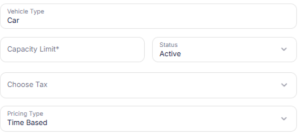
Step 3: Define capacity for the vehicle type
- Enter the capacity for this vehicle type
- Capacity should match the physical slots available in that parking
This ensures SISTEM correctly tracks availability and prevents over-occupancy.
Step 4: Set vehicle status
- Mark the vehicle type as:
- Active → Allowed to enter and be tracked
- Inactive → Temporarily disabled (no entries allowed)
Inactive vehicle types retain their configuration and can be reactivated anytime.
Step 5: Apply tax in particular vehicle type
- Select whether tax applies to this vehicle type
- Tax is calculated on the pricing defined for this vehicle
This is useful when different vehicle categories follow different tax rules.
Step 6: Review pricing model
- The pricing model is defaulted to Time-Based
- Rates are calculated based on parking duration
Advanced pricing rules can be configured later without changing capacity.
Step 7: Add time-based pricing tiers
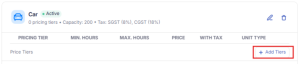
Once the vehicle type details are saved, you can define pricing tiers for that vehicle.
- Click on Add Pricing Tier
- Choose Time-Based Pricing (default model)
You can now set rules such as:
- Up to 3 hours → Fixed or hourly cost
- More than 6 hours → Different rate
- 24 hours or full-day parking → Flat price
Each tier represents how charges change as parking duration increases.
Step 8: Save and repeat for other vehicle types
- Save the configuration
- Repeat the same steps for each vehicle type in the parking
Each vehicle type can have:
- Different capacity
- Different pricing
- Different tax settings
Important notes while adding vehicles
- Vehicle capacity is always parking-specific
- Capacity can be updated later as layouts change
- Disabling a vehicle type does not affect past records
- Changes apply immediately to live operations
Capacity and reporting
Capacity data feeds directly into:
- Occupancy reports
- Peak hour analysis
- Revenue per vehicle type
- Utilization trends
Over time, this helps operators:
- Adjust pricing
- Expand or reduce capacity
- Optimize parking layouts
Common setup mistakes to avoid
- Setting a single capacity for all vehicle types
- Forgetting to include EV or special vehicle slots
- Overestimating capacity beyond physical limits
- Not updating capacity after layout changes
Correct setup ensures the system reflects reality on ground.
In simple words
- Vehicle types define what can park
- Capacity defines how many can park
- Each vehicle type can have its own limit
- SISTEM enforces capacity automatically
This keeps parking operations controlled, predictable, and efficient.
Read next
To continue configuration:
- Pricing rules
- Live parking sessions