



















































































Vehicle parking rates define how much a vehicle is charged for using your parking. Once a rate is set up, SISTEM applies it automatically to every session — so pricing stays consistent no matter who’s operating the parking or how busy it gets.
Why This Matters
Without a system-driven approach, parking pricing usually depends on manual calculations, verbal instructions to staff, or printed rate charts. That tends to lead to billing disputes, revenue leakage, operator errors during busy hours, and an inconsistent experience for customers.
SISTEM replaces all of that with rules you define once — vehicle type, capacity, pricing, and tax — that are then enforced automatically across every session, every time.
How Rates Are Structured
Rates are configured per parking, and within that, per vehicle type — so a car and a bus at the same parking can follow completely different pricing, and one parking’s rates never affect another’s.
Each rate includes:
- The vehicle type it applies to
- The capacity assigned to that vehicle type
- The pricing type (SISTEM defaults to time-based pricing)
- The applicable tax
- Its status — active or inactive
Once a vehicle type’s capacity and basic details are set, you define the actual pricing through tiers — this is what determines how much a vehicle is charged based on how long it stays.
Setting Up a Vehicle Rate
Step 1: Go to Vehicle Rates
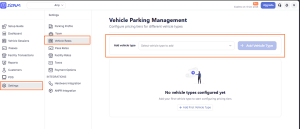
Navigate to Settings → Vehicle Rates. This opens Vehicle Parking Management, where pricing is configured for each vehicle type.
Step 2: Add a vehicle type
Use the Add Vehicle Type field to select from the list — SISTEM supports a wide range, including Car, Bike, Bus, EV, Truck, Taxi, Boat, Minibus, and more. Once selected, click Add Vehicle Type.
Step 3: Configure the vehicle type
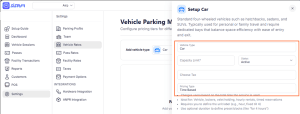
A setup panel opens for the selected vehicle type. Fill in:
- Capacity Limit (required) — the maximum number of this vehicle type your parking can hold
- Status — Active or Inactive
- Choose Tax — typically mapped automatically from your organization’s tax setup, adjustable if needed
- Pricing Type — defaults to Time Based, which charges based on how long the vehicle stays
Step 4: Save
Once saved, the vehicle type appears in your rates list — initially with no pricing tiers configured yet.
Adding Pricing Tiers
Tiers are what actually define your pricing — how much is charged across different stretches of time.
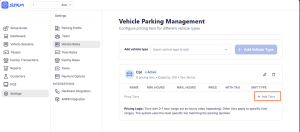
Step 1: Open the vehicle type
Select the vehicle type you just created (for example, Bus).
Step 2: Click Add Tiers
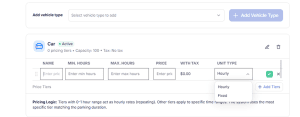
Step 3: Fill in the tier details
- Name — a label for this time range, e.g. “0–4 hours”
- Min. Hours — the duration this tier starts applying from
- Max. Hours — the duration this tier applies up to
- Price — the charge for this tier, before tax
- With Tax — calculated automatically based on the applicable tax
- Unit Type — choose Hourly (the price applies per hour within this range) or Fixed (a flat price once this tier is reached, regardless of exact duration)
Step 4: Confirm
Click the checkmark to save the tier, or the X to discard it.
Step 5: Add more tiers as needed
You can combine Fixed and Hourly tiers to build a complete pricing structure across the full range of parking durations.
How SISTEM Applies Pricing Tiers
When a session ends, SISTEM checks the vehicle’s actual parking duration and applies the most specific tier that matches it. Tiers set to Hourly act as a repeating per-hour rate within their range, while Fixed tiers apply a flat charge once that tier is reached — so you can mix both to shape pricing exactly the way you want across short and long stays.
Managing Rates Over Time
Rates aren’t locked in once set — admins and managers can:
- Edit existing rates
- Activate or deactivate a rate
- Add new rates for additional vehicle types as needed
Any changes apply only to future sessions — completed sessions are never affected retroactively.
How Rates Apply During Live Operations
Once active, a rate is applied automatically the moment a vehicle enters — regardless of how it entered:
- Manual entry
- Pass-based entry
- ANPR-based entry
Operators never need to manually select or calculate a rate SISTEM identifies the vehicle type and applies the correct pricing on its own.
Things to Keep in Mind
- Every vehicle type needs a defined capacity before its rates can be configured.
- Pricing can be based on duration, usage, or a hybrid of both.
- Taxes are typically auto-mapped from your organization’s tax setup, but they can still vary by vehicle type or region.
- Capacity and rates can be updated anytime but once capacity is reached, availability for that vehicle type is restricted.
- Certain vehicle types (trucks, buses, ambulances) may need special compliance, permits, or reserved slots depending on local regulations worth factoring in while setting up capacity and rates.