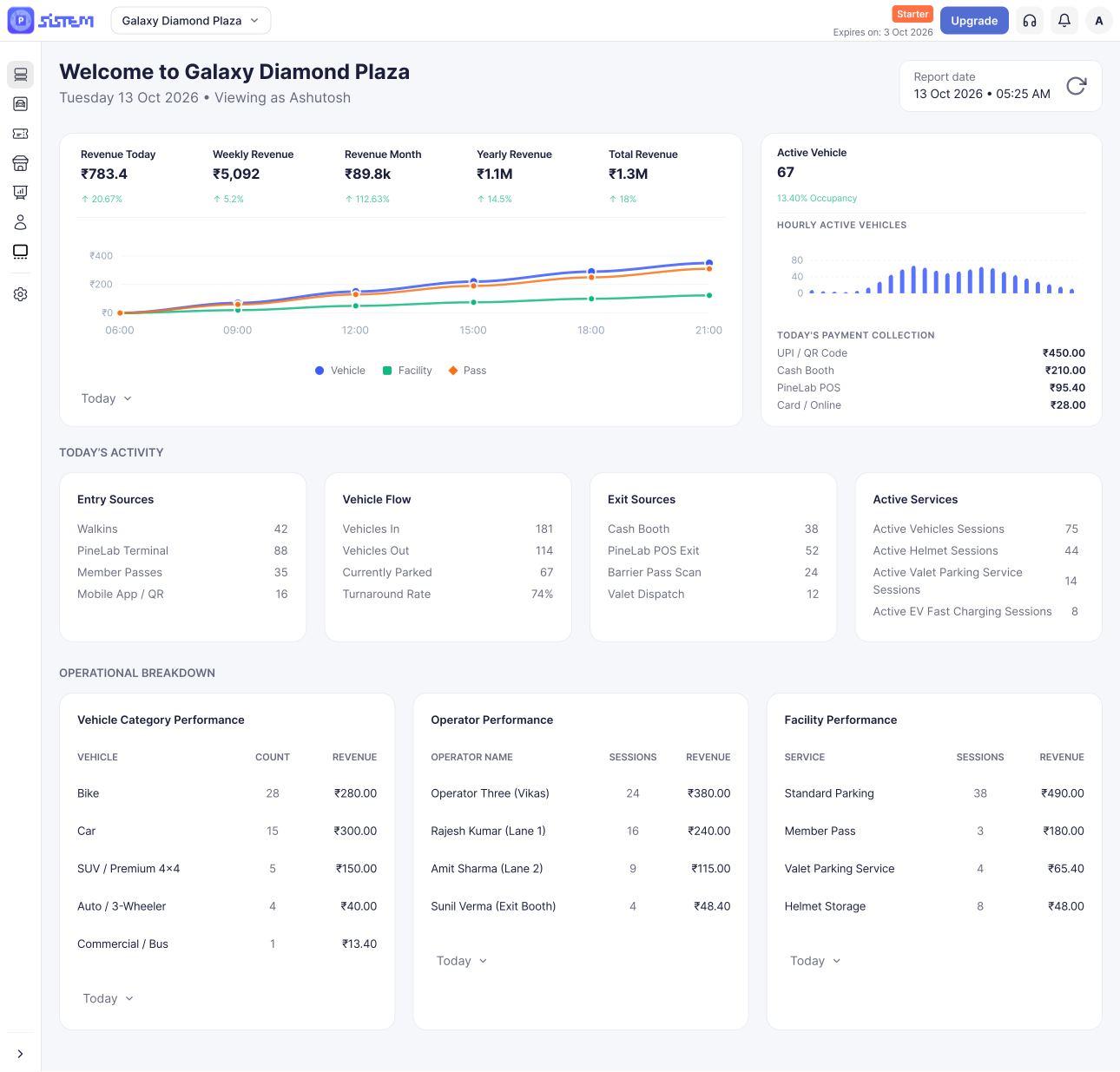



















































































Payment options determine how customers can pay for parking and other applicable charges in SISTEM.
You can add payment options at two levels:
- Organization level: Payment options added here are available to all parkings within the organization.
- Parking level: Payment options can be configured separately for an individual parking.
This gives you the flexibility to manage payments centrally or allow a parking to use its own payment methods.
Before You Start
Make sure you have the required permissions to manage payment settings.
Decide where you want to add the payment option:
- Add it under Organization Settings if the same payment option should be available across your parkings.
- Add it under Parking Settings if the payment option should apply only to a specific parking.
How Organization and Parking Payment Options Work
Organization-level payment options provide a centralized way to manage payments across multiple parkings. When you add a payment option at the organization level, it is enabled for all parkings within that organization.
However, each parking in SISTEM can operate independently. A parking can therefore have its own payment configuration when its payment requirements differ from the organization.
For example, an organization managing three parking locations can add a common payment option at the organization level. If one parking needs an additional or different payment method, it can be configured separately from Parking Settings → Payment Options.
How to Add a Payment Option
The steps are the same whether you are adding a payment option at the organization or parking level.
Add at the Organization Level
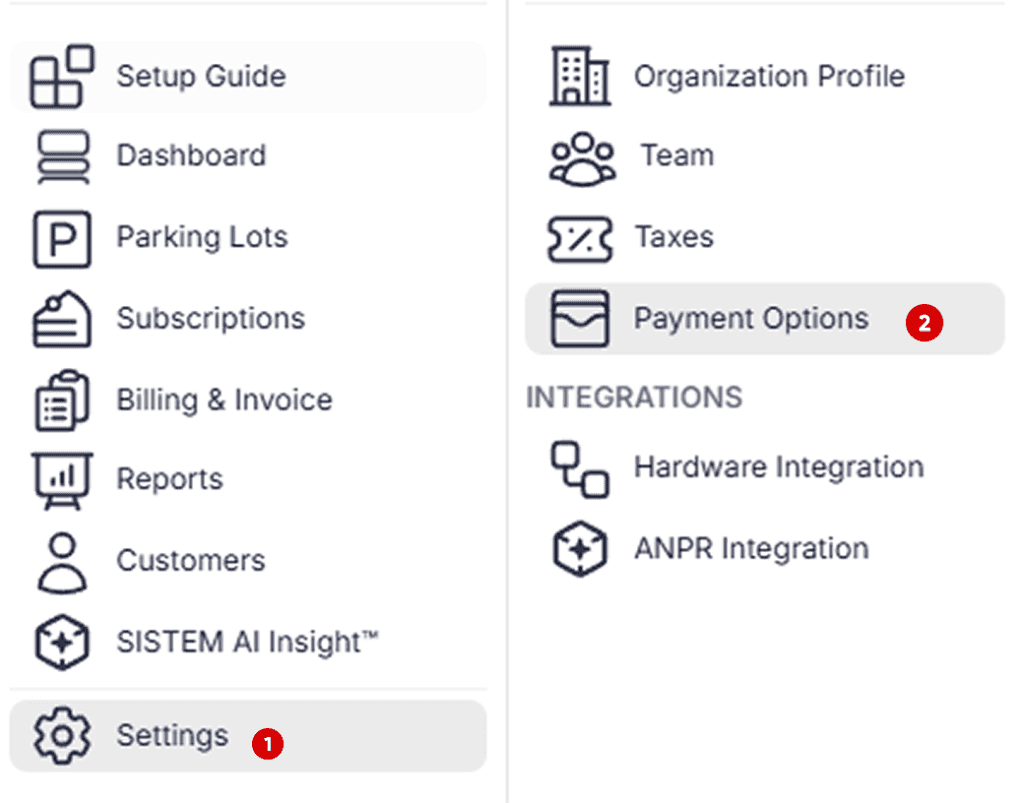
Step 1 : Go to Organization Settings.
From your SISTEM Navigation, open Organization Settings.
Step 2 : Select Payment Options.
Select Payment Options to view and manage the available payment methods.
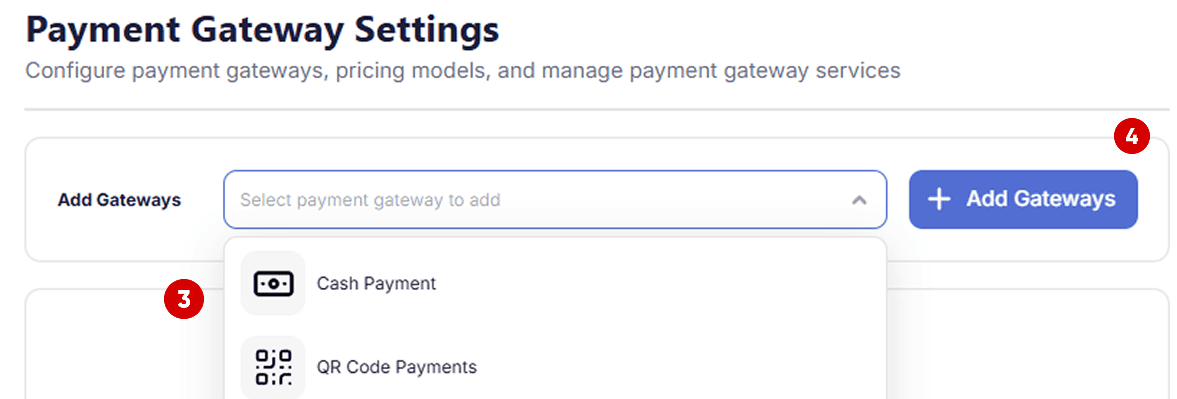
Step 3: Choose the payment mode
Select the payment mode you want to configure.
Step 4 : Click on Add Gateways
Click Add Gateways to add a payment gateway for the selected payment mode.
Step 5: Enter the Gateway Details
Enter the required gateway details and click Save to complete the setup.
Once added, the payment option will be available for use across all parkings under the organization.
Important: Payment options available in SISTEM may vary depending on your country. If the payment option you need is not available, contact the SISTEM Team to check whether it can be enabled for your organization.
Add at the Parking Level
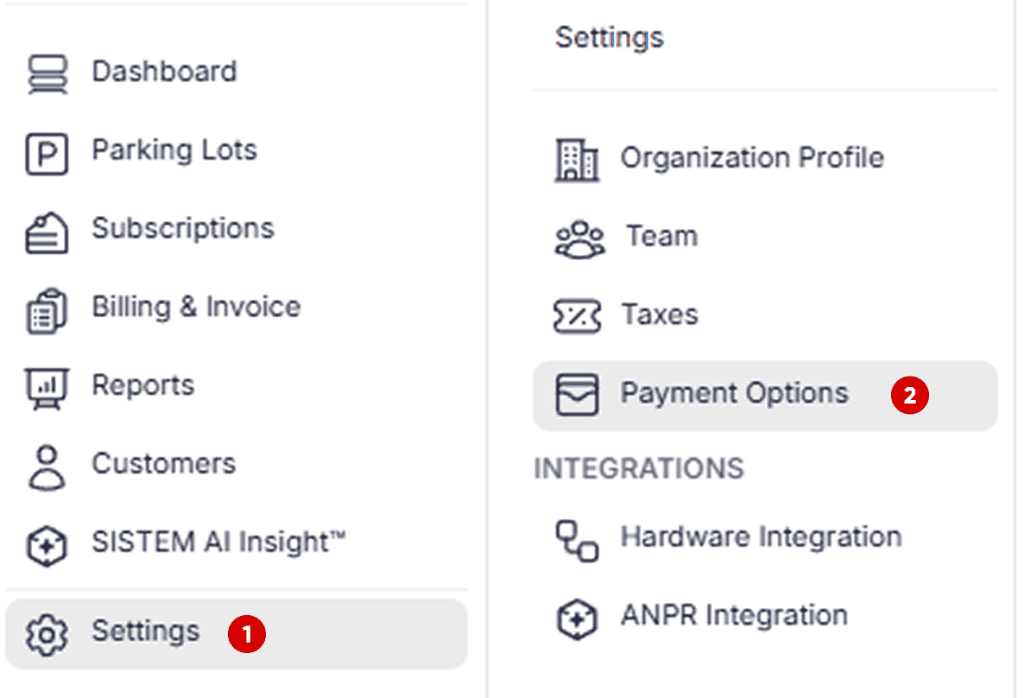
Step 1: Go to Parking Settings
Open the parking where you want to configure payment options and go to Parking Settings.
Step 2: Select Payment Options
Select Payment Options to view the payment methods available for the parking.
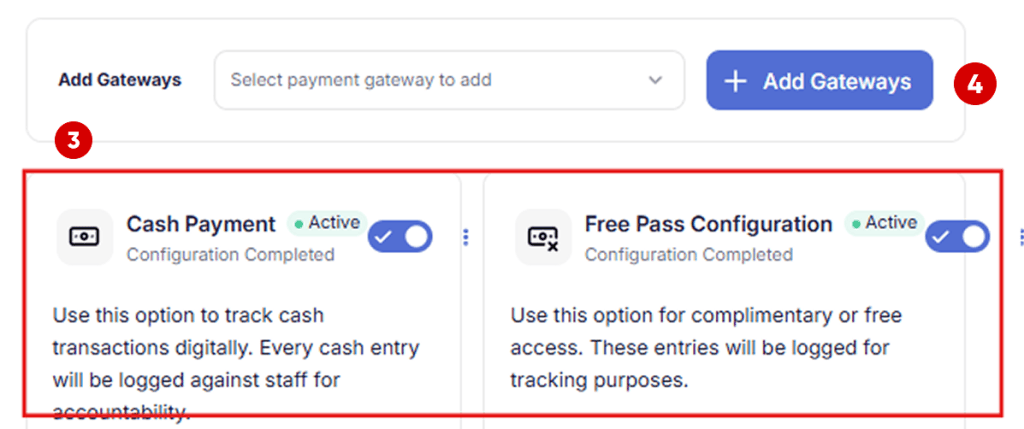
Step 3: Review Organization Payment Options
Payment options added at the organization level will be displayed automatically. These options are available for the parking and cannot be modified or removed from the parking level.
Step 4: Add a Payment Gateway
To add an additional payment option for this parking, select the relevant Payment Mode and click Add Gateways.
Step 5: Enter the Gateway Details
Enter the required gateway details and click Save to complete the setup.
The newly added payment option will be available only for the selected parking and will not be added to other parkings under the organization.
Important Things to Know
- Organization-level payment options apply across all parkings in the organization.
- Parking-level payment options can be configured independently.
- Configure payments at the organization level when you want centralized payment management.
- Configure them at the parking level when a specific parking requires its own payment setup.
- The same navigation pattern applies to payment options in both Organization Settings and Parking Settings.
Relevant Articles
After adding a payment option, you can: