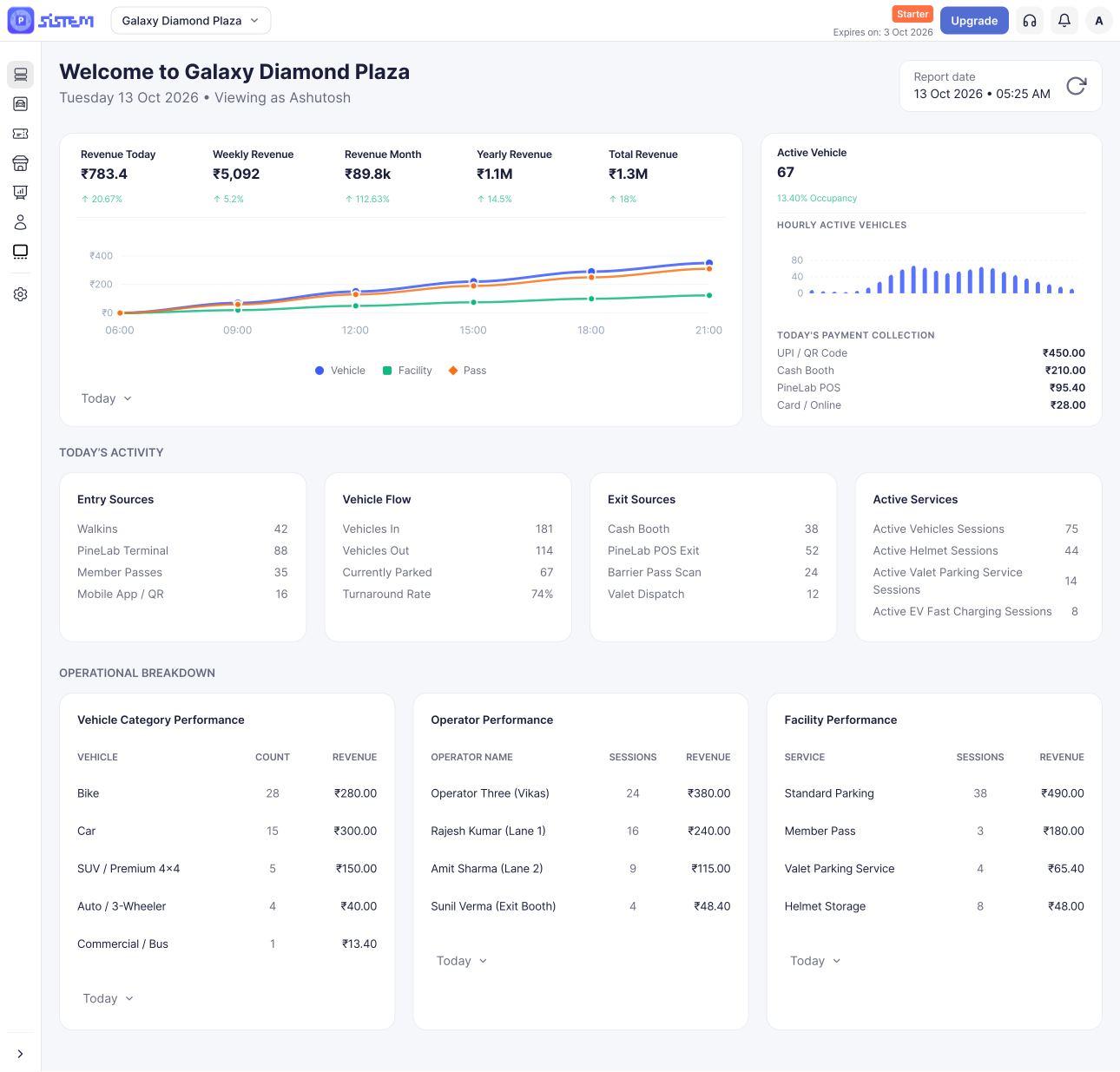



















































































In SISTEM Parking, team members can be added at both the Organization level and Parking level.
The level at which a team member is added determines where they can access and manage the system.
- Organization Admin can manage organization-level team members and parking-level team members.
- Parking Manager can manage team members assigned to their parking, based on their permissions.
Learn more: Roles and Responsibilities in SISTEM Parking
Why Adding Team Members Correctly Matters
Setting up team members with the right roles and permissions helps keep your parking operations secure and organized.
It ensures that:
- Users have the right access
Team members can access only the information and features they need. - Operations stay secure and traceable
User activities can be tracked based on their assigned access. - Responsibilities are clear
Each team member has access based on their role. - Multiple locations stay organized
Team members can be assigned to the parking locations they manage.
Correct access settings help reduce operational errors and prevent unauthorized access to organization and parking data.
Add a Team Member as an Organization Admin
As an Organization Admin, you can add team members at both the organization and parking levels.
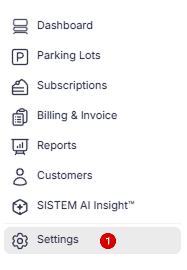
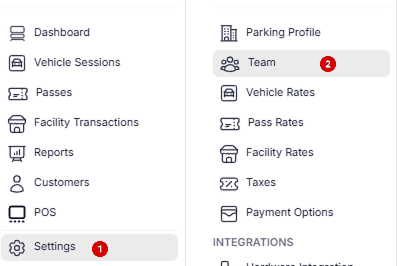
Step 1: Open Organization Settings<
Go to Organization Settings from the main navigation.
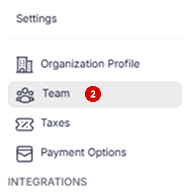
Step 2: Open Team<
Select Team from the organization settings.
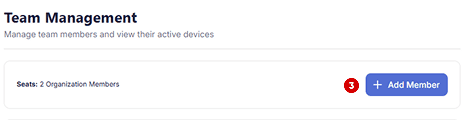
Step 3: Add a Member<
Select Add Member to start adding a new team member.
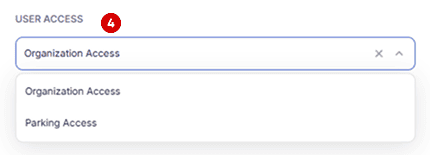
Step 4: Select the Team Member Type<
Choose whether the team member should have:
- Organization-level access
- Parking-level access
The access level determines what the team member can manage in SISTEM.
Step 5: Enter Team Member Details<
Enter the team member’s details, such as:
- Name
- Phone number
- Email address
Set the required login credentials and continue to the permissions section.
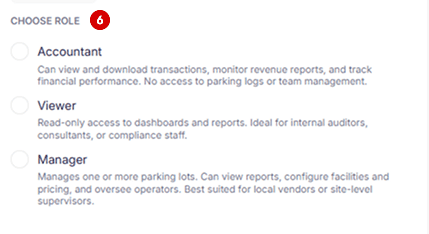
Step 6: Assign Roles<
Select the role that the team member needs based on their responsibilities.
The accurate access will provide to the member access that they need to manage.
Step 7: Review and Send the Invite<
Review the team member’s details, role, and permissions.
Once everything is correct, select Send Invite to complete the process.
Add Team Members as a Parking Manager
As a Parking Manager, you can add team members at the parking level. This allows you to assign users to your parking and give them access based on the responsibilities they will handle.
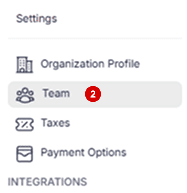
Step 1: Open Parking Settings<
Go to Parking Settings for the parking you manage.
Step 2: Open Team<
Select Team to view the team members assigned to the parking.
Step 3: Add a Member<
Select Add Member to add a new team member.
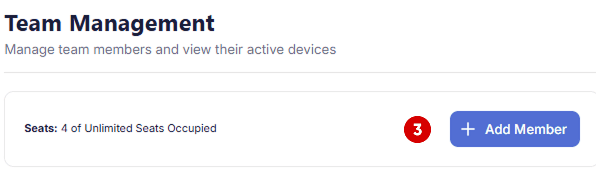
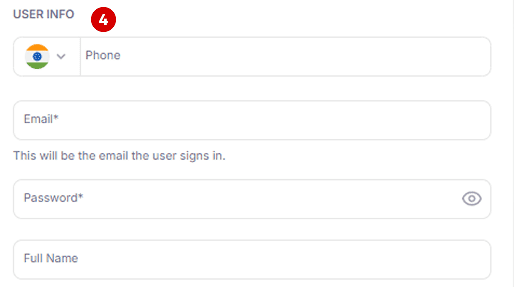
Step 4: Enter Team Member Details<
Enter the team member’s details:
- Name
- Phone number
- Email address
Add the required login details and continue to permissions.
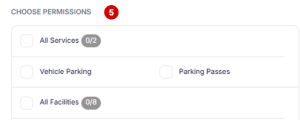
Step 5: Choose Parking Permissions<
Select the modules and features that the team member will manage.
Assign only the permissions required for their responsibilities.
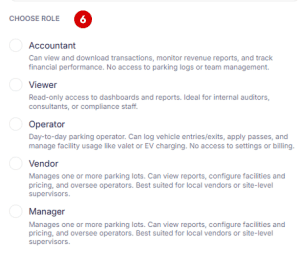
Step 6: Assign a Role<
Select the appropriate role for the team member based on their responsibilities.
The selected role and permissions determine what the team member can access and manage within the parking.
Step 7: Review and Send the Invite<
Review the team member’s:
- Details
- Role
- Permissions
Once everything is correct, select Send Invite to complete the process.
The team member can then use their registered email or phone number and login credentials to access SISTEM.
Important Note
The team member can use the phone number or email address and password provided during setup to log in to SISTEM.
Make sure the login details are shared securely with the team member and that their assigned permissions match their responsibilities.
Read next
Understanding user roles
Org-level vs parking-level access
Create your first parking