



















































































Managing team access is an ongoing responsibility. In SISTEM, organization admins can remove or disable users to maintain security, control access, and reflect staffing changes.
User status changes ensure that only active, authorized personnel can access parking operations and data.
Why remove or disable users
Access should be updated when:
- An employee leaves the organization
- A contractor’s engagement ends
- A user changes roles or locations
- Temporary suspension is required
- Security concerns arise
Failing to update access can lead to unauthorized actions and data exposure.
User status in SISTEM
Each team member has a status that determines whether they can access the system.
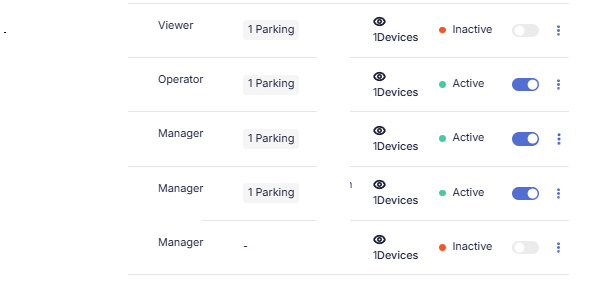
Active
- User can log in
- Permissions and access remain in effect
- Can perform assigned operational tasks
Inactive
- User cannot log in
- Access to parkings and data is revoked
- Historical activity remains (unchanged)
Changing status does not delete past records.
Removing vs disabling users
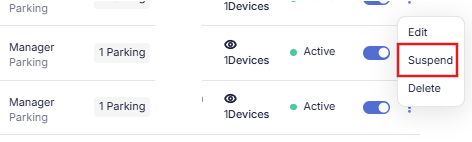
Disabling (suspending) a user
Recommended when access may be needed again.
Use cases:
- Temporary leave
- Role transition
- Investigation or review
The user status changes to inactive, and access is paused.
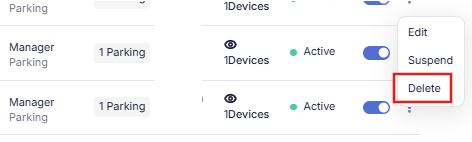
Removing a user
Used when access is no longer required.
Use cases:
- Employee resignation
- Vendor contract completion
- Permanent role removal
The user is removed from the team list, but historical records remain intact for audit purposes.
Who can remove or disable users
Only organization admins can:
- Disable users
- Remove users
- Reactivate inactive users
Managers and operators cannot modify team status.
How to disable or remove a user
Steps
- Go to Organization/ Parking settings
- Open Team members
- Locate the user
- Select Disable or Delete user
- Confirm the action
The user’s status changes to inactive immediately.
What happens to historical data
Removing or disabling a user does not affect:
- Vehicle sessions they created
- Payments they processed
- Reports and audit logs
- Facility usage records
All historical data remains intact for compliance and reporting.
Best practices
- Disable users instead of deleting when unsure
- Review team access regularly
- Remove access immediately upon role change
- Maintain audit trails for accountability
- Avoid shared logins
These practices improve operational security and data integrity.
Common scenarios
Temporary leave → Disable user
Permanent departure → Remove user
Role change → Update permissions instead
Security concern → Disable immediately and review
Read next
Managing permissions
How to add team members
Understanding user roles