

Create Your First Parking

Turning a Physical Space into a Live Operation
Creating your first parking is where SISTEM shifts from setup to real-world operations.
Until now, you’ve defined your business structure.
Now, you connect SISTEM to an actual physical parking location. Once a parking space is created and later activated, SISTEM begins tracking vehicles, applying rules, recording revenue, and supporting daily on-ground activity.
Everything before this was preparation.
This is where operations begin.
What a parking represents
A parking space in SISTEM represents any real-world space where vehicles are managed.
It could be:
- An open parking lot
- A residential or office basement
- An on-street parking zone
- A mall, hospital, campus, or event site
Each parking area is treated as an independent operational unit. This means every location can have its own:
- Capacity and layout
- Pricing logic
- Entry and exit methods
- Pass and subscription rules
- Facilities and services
- Parking-level team members
This separation is intentional. It allows one organization to run very different parking environments without conflicts or compromises.
Parking setup is broken into clear stages, so you always configure one logical decision at a time what the space is, where it is, when it operates, and how it behaves.
Login to proceed to create your first parking
Before you start
To create a parking, you need:
- An active organization
- Permission to create parkings (admin or manager role)
You do not need to select a subscription plan yet.
You can create and configure a parking space freely before going live.
Everything you set up during parking creation can be edited later. Nothing is locked prematurely. Parking profiles are designed to evolve as real-world conditions change.
As an organization admin, you can add a new parking area from the parking lots tabs.

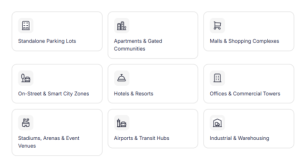
Step 1: Choose the parking type
First, you define what kind of parking space this is.
Common types include:
- Open lot parking
- Building or basement parking
- On-street or zone-based parking
- Temporary or event parking
This helps SISTEM apply sensible operational defaults for entry flow, capacity handling, and reporting.
You can always adjust this later if your setup changes.
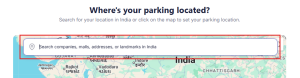
Step 2: Set location and address
Next, you define where this parking exists in the real world:
- Address
- City, state, and country
Accurate location data helps with:
- Regional reporting
- Tax and compliance alignment
- Time zone accuracy
- Future integrations
This information doesn’t affect daily operations directly but becomes important as you scale.
Step 3: Define parking identity
Here, you give your parking a recognizable identity:
- Parking name
- Short description
- Optional images or media
This helps distinguish locations when managing multiple parkings and improves clarity for team members and future customer-facing experiences.
These details can be updated anytime from the parking profile.
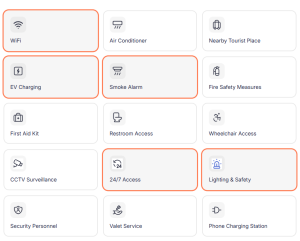
Step 4: Add basic facilities at your parking
You now describe high-level physical attributes, such as:
- Covered or uncovered parking
- Security availability
- EV readiness
- Other key features
These indicators help classify the parking but do not yet activate pricing or services. They simply describe the space clearly.
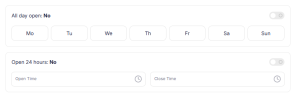
Step 5: Set operating hours
Finally, you define when this parking operates:
- Time zone (defaults from organization)
- Open days
- Daily operating hours
You can also mark a parking as:
- 24×7 open
- Closed on specific days
Operating hours affect:
- Session tracking
- Rate enforcement
- Reports and analytics
SISTEM strictly respects time zone boundaries to ensure accurate records.
Created parking vs Live parking
After these steps, your parking is created, but not yet live.
Created parking:
- Exists in SISTEM
- Can be fully configured
- Does not accept vehicles
Live parking:
- Accepts vehicle entries
- Tracks sessions
- Generates revenue and reports
Activation happens only after essential operational settings are completed. This prevents incomplete setups from entering live use.
What happens after creation
Once a parking exists, SISTEM unlocks operational configuration:
- Define vehicle types and capacity
- Configure pricing rules
- Enable passes or subscriptions
- Add facilities and services
- Assign parking-level team members
These steps are guided in the Go Live Checklist.
Common first-time questions
If you’re unsure about:
- What to configure first
- Which settings are mandatory
- What can be skipped initially
That’s normal. Most operators start with a simple setup and expand later. SISTEM is designed to support gradual growth without rework.
You’ll find answers in Common First-Day Questions.
Read next
After creating your parking, prepare it for live operations.