

Inviting team members

SISTEM allows organization admins to add team members and assign access at both the organization level and parking level. This ensures every user has the right permissions based on their responsibilities.
Adding team members correctly helps maintain security, operational clarity, and accountability across locations.
Why adding team members correctly matters
Proper team setup ensures:
- Users see only what they need
- Operations remain secure and traceable
- Responsibilities are clearly defined
- Multi-location teams stay organized
Incorrect access can lead to operational errors or data exposure.
Who can add team members
Only users with organization admin or parking admins access can add or manage team members.
They can:
- Invite new users
- Assign roles
- Define access level (organization or parking)
- Update or revoke access
Learn more about roles and their access
Adding a team member with organization-level access
Use this when the user needs visibility across all parking locations.
Steps
- Go to Organization settings
- Select Team members
- Click Add team member
- Choose Organization-level access
- Enter user details:
- Name
- Email address
- Contact number (optional)
- Select a role (e.g., Admin, Accountant, Viewer)
- Save and send invitation
The user will receive an email invitation to join the organization.
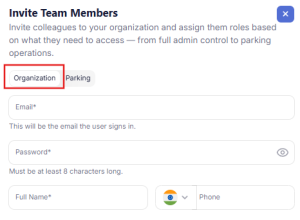
Note : Organization level admins can also add parking level roles. Mostly, it’s used when parking level admin needs to be assigned for a particular parking.
In Step 4, parking level roles can also be selected if creating one.
Adding a team member with parking-level access
Use this when the user should operate only specific parking locations.
Steps
- Go to Organization settings
- Select Team members
- Click Add team member
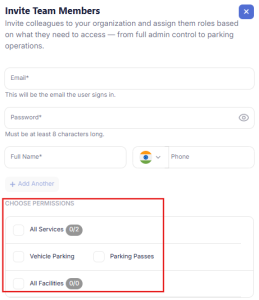
- Enter user details:
- Name
- Email address
- Contact number (optional)
- Tick the checkbox for which modules the role need access to.
- Select a role (e.g., Manager, Operator, Viewer, Accountant)
- Save and send invitation
The user will only see and operate the selected parking locations.
Operational best practices
- Assign the minimum access required
- Use parking-level access for on-ground staff
- Review access regularly
- Remove inactive users promptly
Clear access control improves security and accountability.
Read next
Understanding user roles
Org-level vs parking-level access
Create your first parking