


Creating your organization is the first step to using SISTEM Parking.
Your organization is the central account from which you manage your parking business. It provides the foundation for managing parkings, users, permissions, billing, and organization-level settings.
Once your organization is created, you can add and manage one or more parking locations under it.
Prerequisites
Before you sign up, make sure you have:
- A valid business email address that you can access.
- Your official organization name.
- Your country and state or region.
- A valid phone number for account communication.
Step-by-Step Account Creation
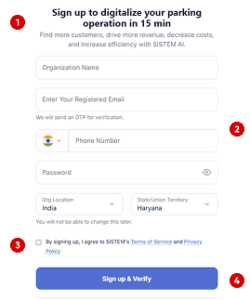
1. Open the Sign-Up Page
Go to the SISTEM Sign Up page to create your account.
2. Enter Your Organization Details
Complete the registration form with the required information:
- Organization Name — Enter your official business or organization name.
- Email Address — Enter the email address you want to use for your SISTEM account. This email will be used for account verification and important notifications.
- Phone Number — Enter a valid contact number.
- Password — Create a secure password that meets SISTEM’s password requirements.
- Country — Select your country.
- State/Region — Select your state or region.
3. Accept the Terms
Review the Terms and Conditions and select the checkbox to accept them.
4. Create Your Account
Click Sign Up to create your SISTEM account.
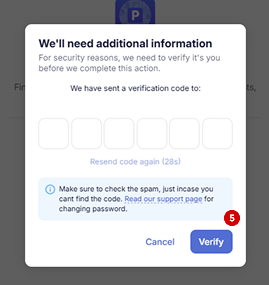
5. Verify Your Email
After submitting the registration form, your registration email will receive a verification code to successfully complete the onboarding of your organization.
Enter the code and click verify.
After Sign-Up
Once your email is verified, your organization will be created in SISTEM.
You will then be directed to the Setup Guide, where you can configure your organization and set up your first parking.
From there, you can:
- Configure organization settings.
- Add your first parking location.
- Set up users and permissions.
- Configure pricing, access, facilities, and other settings.
- Connect supported hardware and integrations.