


Your organization’s timezone is selected during organization registration and cannot be changed directly from your SISTEM account.
You can, however, check the current organization timezone from the Organization Profile. If it needs to be changed, contact the SISTEM team for assistance.
How to Check Your Organization Timezone
To check the timezone currently set for your organization:
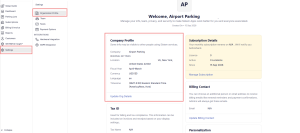
- Log in to your SISTEM organization/admin account.
- Go to Settings.
- Open Organization Profile.
- Under Company Details, find Timezone.
- Check the timezone displayed for your organization.
The timezone shown here is the default organization timezone used for your parking operations.
Can You Change the Organization Timezone?
The organization timezone cannot be edited directly from the Organization Profile. It must be selected correctly during organization registration because it provides the default timezone for your parking operations.
If the timezone was set incorrectly or needs to be changed, contact the SISTEM team for assistance.
When contacting the SISTEM team, provide:
- Organization name
- Current timezone
- Required timezone
The SISTEM team will review your request and assist with the change.
Important
If you operate multiple parkings in a country with multiple timezones, you can select the appropriate timezone for each parking when creating it. The organization timezone remains the default for your parkings.
Read More
- How to change parking timezone
- Understanding Timezone and Operating Hours
- How to change parking operating hours