


















































































Create Your First Parking

Creating a parking is the next step after setting up your organization. This is where you connect SISTEM to a real-world location and lay the foundation for managing its day-to-day operations.
Each parking is set up as an independent location within your organization. You’ll configure its location, type, operating hours, amenities, images, and assigned manager. Once it’s created, you can move on to the operational setup, rates, passes, facilities, and more.
What Is a Parking in SISTEM?
A parking represents a real-world location where vehicles are parked and managed. This could be:
- Standalone parking lots
- Hotels and resorts
- Offices and commercial buildings
- Airports and transit hubs
- Stadiums, arenas, and event venues
- Apartments and gated communities
- Industrial and warehouse locations
- On-street and smart city parking
- Retail stores, malls, and shopping complexes
- Coastal zones, harbours, and marinas
Each parking runs as its own operational unit within your organization so you can configure each one based on what it actually needs, without affecting the others.
What Can You Configure for Each Parking?
Every parking can have its own:
| Configurations | Description |
|---|---|
| Parking Details | Name, description, and parking type |
| Location | Physical location and registered address |
| Amenities | Services and amenities available on-site |
| Operating Hours | Working days and hours of operation |
| Images | Photos that help identify and present the parking |
| Parking Team | The team members responsible for managing it |
| Vehicle & Pass Rates | Pricing, configured after the parking is created |
| Facilities | Additional services available at the location |
This separation means you can run very different parking locations under the same organization, each with its own setup.
Before You Create a Parking
Make sure you have:
- Registered your SISTEM organization
- Completed the Organization Setup Guide
- Administrator access to the organization
- The basic information about the parking location
Once you have these ready, you can create a parking from the Parking section.
Steps to Create Your Parking
SISTEM walks you through a simple step-by-step setup flow.
Step 1: Log in and open the Parking section
Log in to your organization account and open the Parking section to start creating a parking. Only organization admins or managers can create a parking.
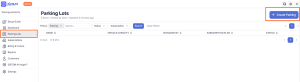
Step 2: Click “Add Parking”
In the Parking tab, click Add Parking to begin.
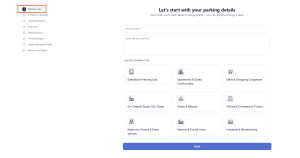
Step 3: Add basic details and choose a parking type
Enter the parking name and description, and choose its type standalone, airport, mall, and so on.
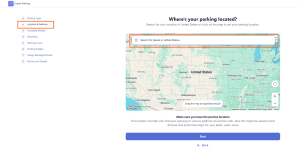
Step 4: Set the parking location
Use the map to set the physical location of the parking. This helps identify the parking and supports location-based features.
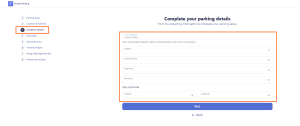
Step 5: Add the registered address
Enter the official address. Make sure it’s accurate, since it may appear in documents and customer-facing details.
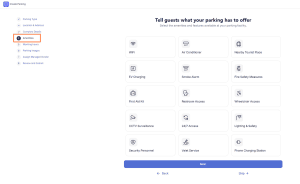
Step 6: Add amenities
Select what’s available on-site ,Wi-Fi, fire safety measures, valet service, or anything else relevant. This helps users know what to expect before they arrive.
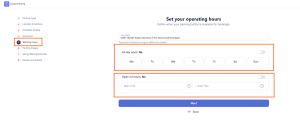
Step 7: Set operating hours
Define the working days, opening time, and closing time, this becomes the regular operating schedule for the parking.
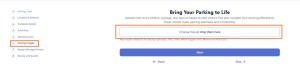
Step 8: Add images
Upload photos of the location so users can recognize it and know what to expect.
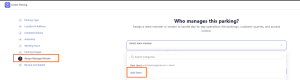
Step 9: Assign a parking manager
Assign a team member to manage this parking. If they’re not already part of your organization, you can add them right here. Once assigned, they’ll have access based on their role and permissions.
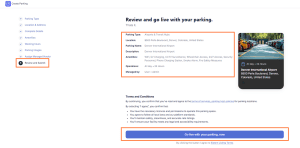
Step 10: Review and go live
Review everything you’ve entered. Once it looks right, select Go Live to create the parking.
After Creating Your Parking
Creating the parking sets up its basic structure but it isn’t ready for daily operations just yet. Before you can start running it day to day, you’ll still need to:
- Set up vehicle rates, pass rates, and facility rates
- Add your operators, accountants, or other team members and assign their parking-level access
- Review your taxes and payment options so you’re ready to accept payments from customers
Beyond that, depending on how you plan to run the parking, you may also want to:
- Configure vehicle types and capacity
- Enable parking passes
- Set up entry and exit methods
- Connect supported devices or integrations
These settings are what determine how the parking actually runs from day to day.
Learn how to set up your parking
Things to Consider
Each parking is managed as a separate operational entity within your organization, so most parking-specific settings can be configured independently.
That said, some organization-level settings are available as defaults when you set up a parking for example, your organization’s timezone. It’s worth reviewing your organization settings before creating a parking, to make sure the right defaults are already in place.
How Is a Subscription Assigned?
When you create a parking, it’s automatically placed on the default subscription plan and your trial period begins. You can use SISTEM Parking’s features throughout the trial. Once the trial ends, you’ll need to upgrade the parking’s subscription to keep using it.
- Learn more about subscription plans
- Learn how to upgrade your parking subscription